
How To Change The Default Products Listing View In Your Store | Shopify Themes

Shopify is an amazing eCommerce platform to sell your products online. Customers can easily view the catalog with products and order it in less time with a great shopping experience.

The way your product listing looks can play a great role, so that’s the reason you want to change the default product listing view from the grid to list, to do it, follow the steps as shown below :

NOTE: This tutorial is helpful to only themes that have sections, you can check if your theme has them in the Online store ➜ Themes ➜ Customize. If you find content inside the sections tab, this guide is for you.

1. Open your Shopify admin panel and go to the Online store ➜ Themes ➜ Actions ➜ Edit code.
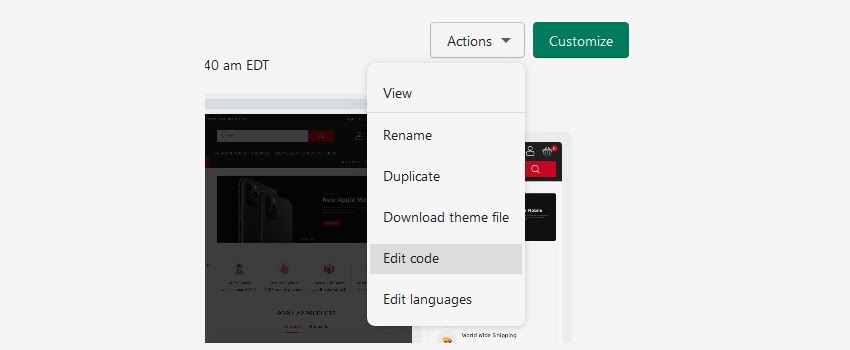
change-default-product-yourstore1

2. In the Sections folder, go on the left sidebar and select the template-collection.liquid file and create a backup of it in case if something goes wrong.

3. Find this part of the code, approx on line 110 :

  1. <ul class=”product_view”>
  2. <li id=”view_grid” data-view=”grid” class=”active”>
  3. <i class=”fa fa-th” aria-hidden=”true”></i>
  4. </li>
  5.        <li id=”view_list” data-view=”list”>
  6. <i class=”fa fa-th-list” aria-hidden=”true”></i>
  7. </li>
  8. </ul>

4. Remove the class=“active” from the first <li> and add it to the second one so it will look like this :

  1. <ul class=”product_view”>
  2. <li id=”view_grid” data-view=”grid”>
  3. <i class=”fa fa-th” aria-hidden=”true”></i>
  4. </li>
  5.       <li id=”view_list” data-view=”list” class=”active”>
  6. <i class=”fa fa-th-list” aria-hidden=”true”></i>
  7. </li>
  8. </ul>

5. After doing it, find this part of the code, approx on line 345 :

  1. {% javascript %}
  2. jQuery (document) .ready(function($) {
  3. // PRODUCTS VIEW GRID/LIST
  4. if ( typeof $.cookie(‘productSortView’) == ‘undefined’ ) {
  5. $.cookie(‘productSortView’, ‘grid’, {path: ‘/’});
  6. }
  7. else if ( $.cookie(‘productSortView’) == ‘list’ ) {
  8. $(‘#view_grid’).removeClass(‘active’);
  9. $(‘#view_list’).addClass(‘active’);

And replace it with this code :

  1. {% javascript %}
  2. jQuery (document) .ready(function($) {
  3. // PRODUCTS VIEW GRID/LIST
  4. if ( typeof $.cookie(‘productSortView’) == ‘undefined’ ) {
  5. $.cookie(‘productSortView’, ‘grid’, {path: ‘/’});
  6. }
  7. else if ( $.cookie(‘productSortView’) == ‘grid’ ) {
  8. $(‘#view_list’).removeClass(‘active’);
  9. $(‘#view_grid’).addClass(‘active’);

6. Save and refresh the page to see the changes you made.

Hope this tutorial will be helpful to you!

Related Tutorials For Shopify :

How To Manage Pages | Shopify Themes

How To Find & Edit Any Text | Shopify Themes

Leave a comment

\n\n\n